Comparing File Managers
For Mac power users managing multi-terabyte digital archives—such as lossless classical music collections, video production masters, and high-resolution photo libraries—file management is not merely about dragging an icon from Point A to Point B. These workflows demand two non-negotiable capabilities:
- Effortless navigation through deep directory hierarchies (e.g.,
Genre → Composer → Work → Conductor/Album → Lossless FLAC/CUE). - Robust, rock-solid SFTP/network transport engines that handle gigabytes of data across local Linux servers and remote web hosts without choking macOS or corrupting transfers.
As documented in a previous post, attempting to force this workflow through virtual disk mounters like Mountain Duck can have catastrophic consequences for system performance—at one point driving a Mac workstation to 733% CPU utilization and hoarding over 11 GB of RAM during an accidental duplicate transfer of a single 2.68 GB classical album.
To prevent these system-halting bottlenecks, power users must look to dedicated file management solutions. Navigating this space requires evaluating six distinct options across the macOS ecosystem:
- The Dual-Pane Direct Streamers: BinaryNights’ ForkLift 4 and Eltima’s Commander One
- The Dedicated Transfer Silo: Panic’s Transmit 5
- The Modular Finder Replacements: Cocoatech’s Path Finder and Jerry Qin’s QSpace Pro
- The Virtual Disk Workaround: Apple Finder paired with Mountain Duck
Here is an architectural breakdown of how these tools compare, where they stumble, and which delivers the speed, visibility, and control that multi-terabyte archiving demands.
1. What Is Column View? (The Secret Weapon of macOS Navigation)
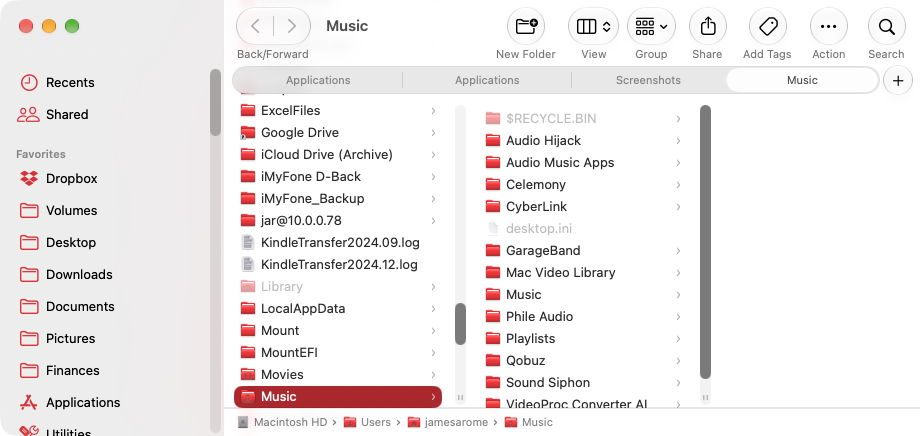
Column View (historically known in computer science as Miller Columns) is a graphical user interface technique designed specifically for browsing deep directory trees and nested file hierarchies.
Invented in 1980 by computer scientist Mark S. Miller (and later refined at Xerox PARC), the technique rose to fame when Steve Jobs adopted it as the signature file navigation paradigm in NeXTSTEP—the operating system that eventually became Mac OS X. It has been a cornerstone of macOS Finder (Cmd + 3) ever since.
| Column 1: Genre | Column 2: Composer | Column 3: Work / Album | Column 4: File Content |
|---|---|---|---|
|
Classical › Jazz Electronic Rock |
Bach, J.S. Beethoven, L.v. Simpson, Christopher › Vivaldi, Antonio |
Cello Suites Brandenburg Concertos The Monthes (1668) › Ground in D |
01 - Prelude.flac 02 - Allemande.flac 03 - Courante.flac 04 - Sarabande.flac |
How Column View Works
Instead of replacing the window’s contents when a folder is opened, Column View expands horizontally to the right:
- Selecting a folder in the first column reveals its contents in a new adjacent column to the right.
- Selecting a subfolder in that column reveals a third column, preserving all parent folders to the left.
- If the columns extend beyond the width of the display, the view smoothly slides horizontally, keeping the active path visible.
- Selecting a file in the final column displays an interactive Preview pane showing audio waveforms, image thumbnails, bitrates, file sizes, and metadata.
Why Power Users Rely on Column View
- Instant Ancestral Context: At a single glance, an archivist can see the entire lineage from root to leaf:
Music → Classical → Simpson, Christopher → The Monthes → Disc 1. - Zero-Latency Keyboard Navigation: An archivist never needs to touch the mouse:
UpandDownarrows move through siblings in the current folder,Right Arrowdrills immediately into a child folder, andLeft Arrowsteps back to the parent folder. - Side-by-Side Dual Tree Verification: When paired with a dual-pane manager, a user can have two independent Column Views side-by-side. Comparing an entire album hierarchy on a local SSD against a remote server backup takes seconds, because every branch of both trees is visually laid out in parallel.
2. The Contenders Broken Down
| Direct SFTP Socket Engine (ForkLift / Transmit) | Virtual Disk Mounter (Mountain Duck / NetFS) |
|---|---|
|
Architecture: Application → Dedicated Async Queue HUD → Background OpenSSH/libssh2 Socket (Port 22) → Remote Server Behavior: |
Architecture: Application → macOS Kernel (FUSE/NetFS) → Mountain Duck Daemon → Remote Server Behavior: |
1. ForkLift 4: The Benchmark
ForkLift 4 stands out because it successfully combines Finder-native Column View with an independent, multi-threaded asynchronous transfer engine.
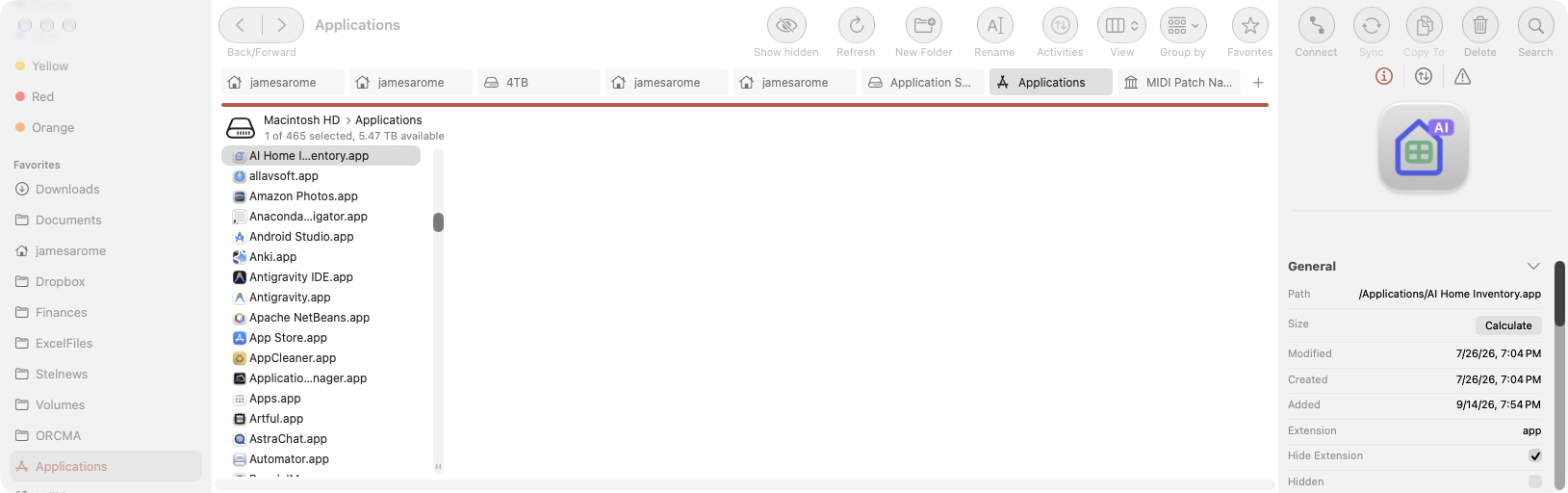
- Strengths: Archivists can browse local and remote directories simultaneously in dual-pane Column View. File transfers do not block the UI; they stream via background
libssh2/OpenSSH sockets directly into a dedicated Transfer Queue HUD that supports pause, resume, speed limits, and conflict handling. - Weaknesses: Early 4.x releases experienced minor UI polish regressions and setting migration quirks from ForkLift 3, though these have largely been stabilized in recent updates.
2. Transmit 5: The Dedicated Transfer Silo
Panic’s Transmit 5 is widely celebrated among web developers for raw transfer speed, but it stumbles badly in archival media management:
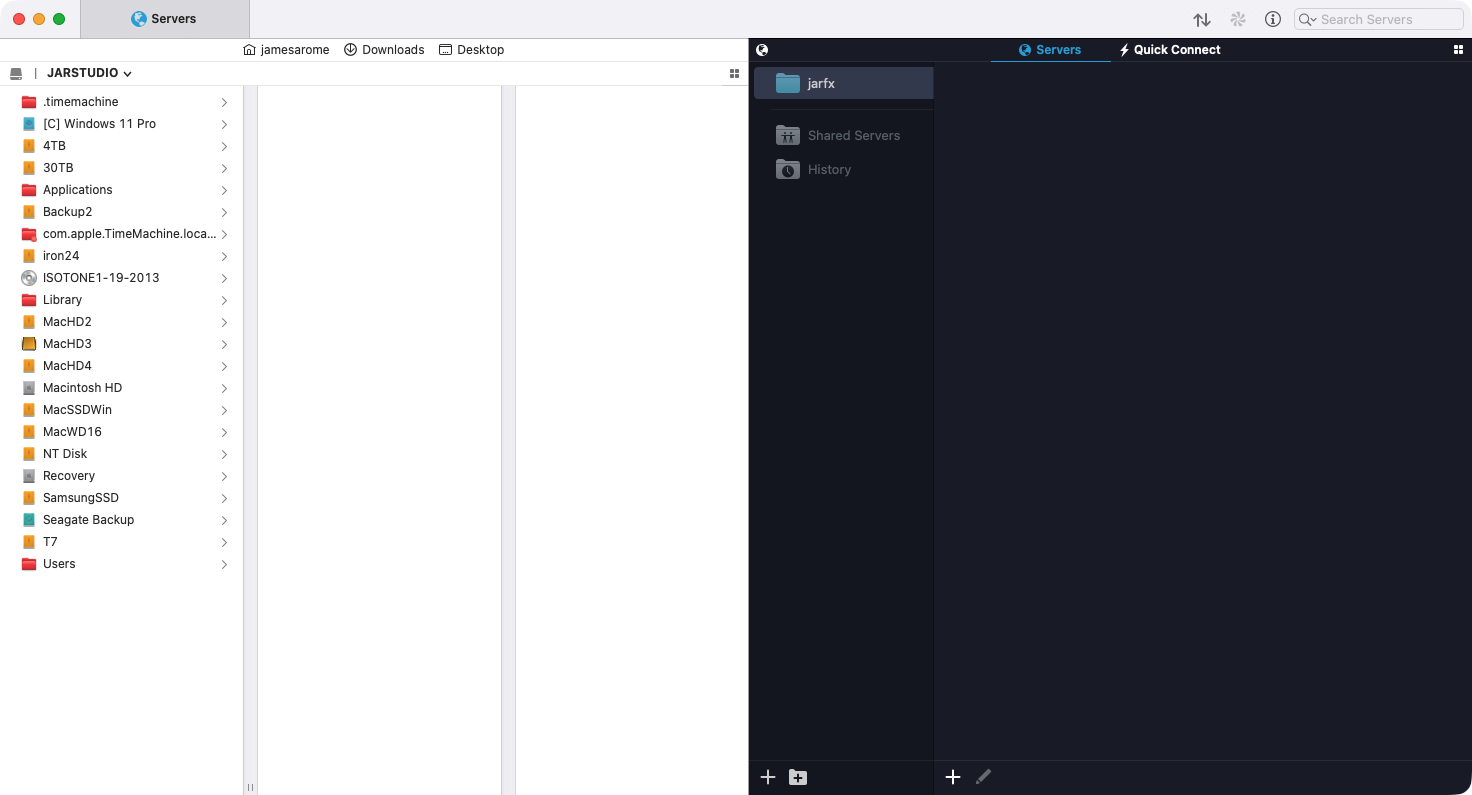
- No Column View: Transmit strictly provides List, Icon, and Cover Flow views. Browsing hundreds of composers in List view forces users into endless disclosure-triangle scrolling.
- The Death of "Transmit Disk": Transmit previously allowed mounting servers as local Finder disks, but Panic permanently discontinued the feature when Apple deprecated kernel extensions (KEXTs). Transmit is strictly an isolated transfer client.
3. Commander One: The Orthodox Norton Heritage
Eltima’s Commander One appeals to keyboard-centric terminal veterans, but its architecture conflicts with deep media management:
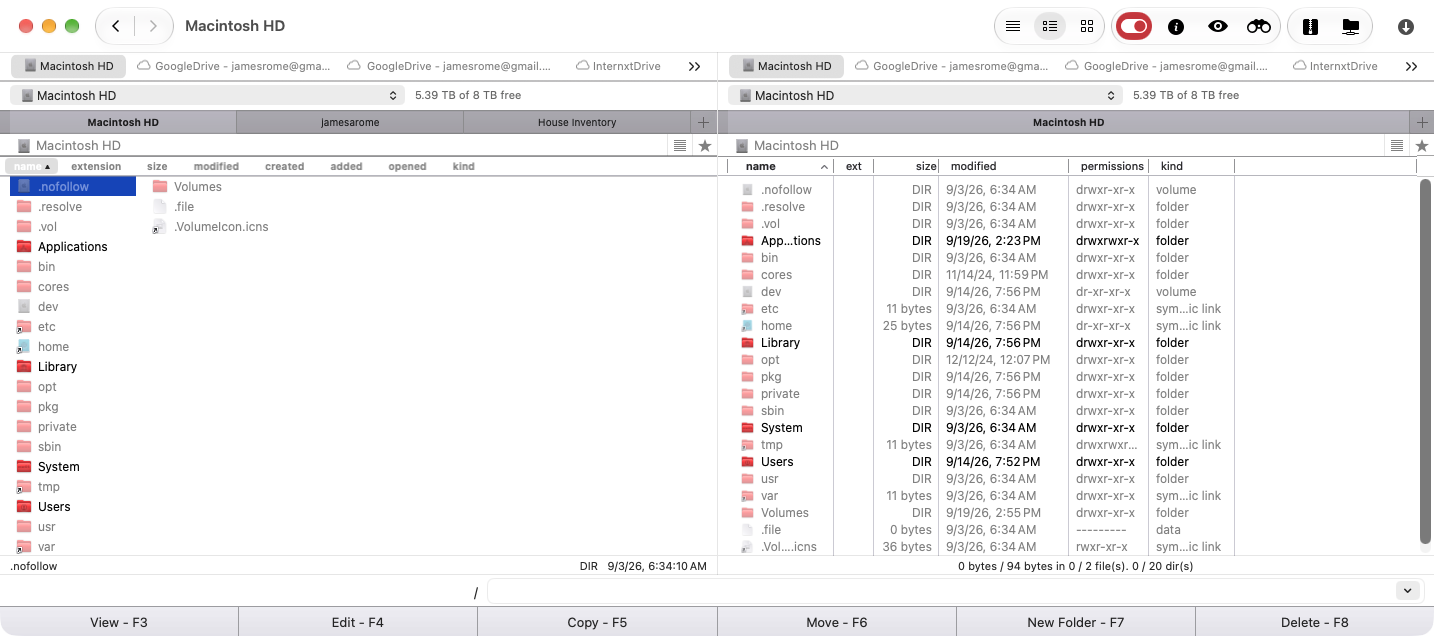
- No Column View: It relies entirely on flat, two-panel table lists. Opening a folder completely replaces the view, destroying visual breadcrumbs.
- Paywalled SFTP: Out-of-the-box, Commander One lacks SFTP, FTP, and WebDAV support; these basic protocols are locked behind an expensive "Pro Pack" in-app purchase.
- Filesystem Polling Freezes: When navigating large directories or high-latency network mounts, its directory watcher frequently locks up the main UI thread.
4. Path Finder: The Engine-Less Explorer
Cocoatech’s Path Finder has one of the most customizable file management interfaces on macOS, but it harbors a fatal design limitation for network power users:
- No Native SFTP Stack: Path Finder has no built-in SFTP transfer engine. Its Connect to Server (
Cmd + K) feature delegates directly to Apple’s nativeNetFSdaemon. Because macOS NetFS natively supports only SMB, AFP, and WebDAV, attempting to connect tosftp://fails with an invalid protocol error. - Forced Virtual Mounting: To access SFTP servers, Path Finder users are forced to rely on external virtual mount tools like Mountain Duck, immediately exposing them to severe kernel cache bottlenecks.
5. Finder + Mountain Duck: The Virtual Disk Trap
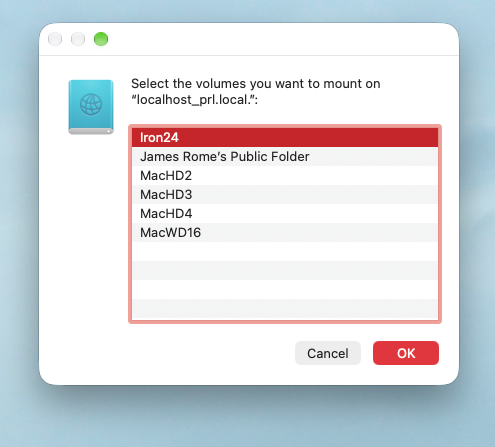
Many users attempt to preserve Finder's native Column View by using Mountain Duck (or macFUSE) to mount remote SFTP servers as local desktop drives. As detailed in a previous post, this architecture repeatedly collapses under heavy media archiving:
- The 733% CPU / 11 GB RAM Bottleneck: Because Finder assumes the mounted server is a local block device, it initiates aggressive file coordination,
.DS_Storegeneration, Spotlight indexing, and QuickLook thumbnail generation across the network pipe. In our test, an accidental duplicate copy of a 2.68 GB album caused Mountain Duck’s daemon to enter catastrophic lock contention, thrashing the CPU at 733%, leaking 11 GB of RAM, and freezing the host workstation. - Silent Dropouts: Finder's native copy dialog lacks transfer throttling, retry mechanisms, and checksum validation. A momentary network timeout causes Finder to abort with an ambiguous
Error -36, leaving half-copied, corrupted directory trees on the destination server.
6. QSpace Pro: From Cluttered "Cockpit" to a True ForkLift Rival (Once Configured)
Out of the box, QSpace Pro makes a jarring first impression. Its default configuration leans heavily into a crowded, "cockpit-style" interface with up to four tiled panes, dense micro-icons, and a floating Stash Shelf window that pops up uninvited whenever your cursor wiggles while dragging a file. Worse, many users initially conclude that QSpace cannot connect to remote servers at all—leading them into the trap of pairing it with virtual disk mounters like Mountain Duck.
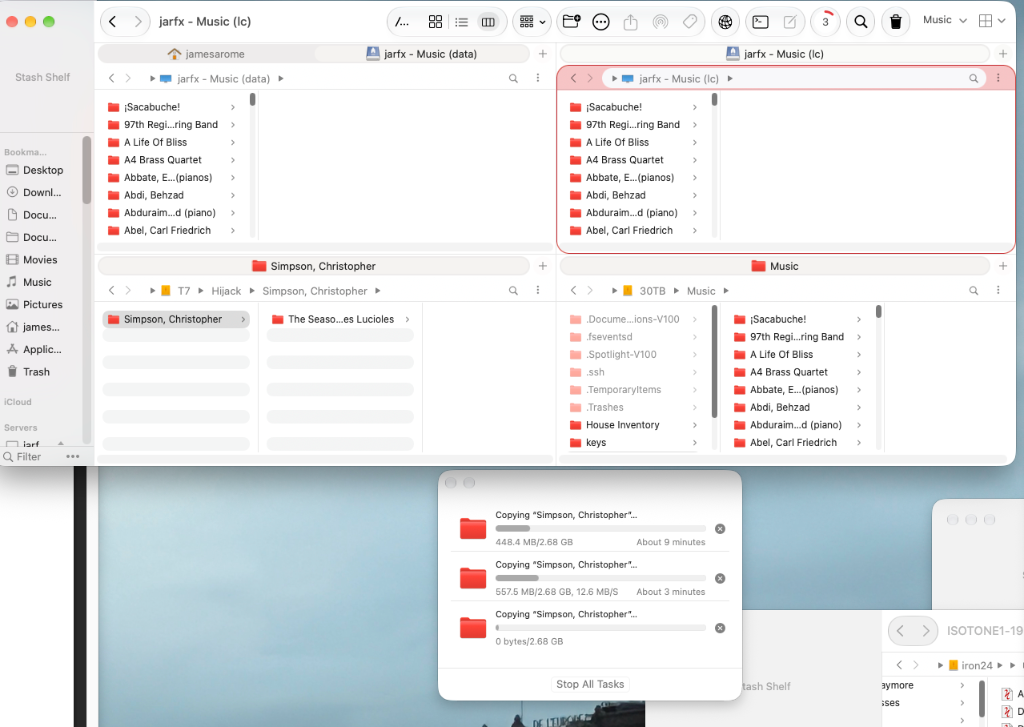
However, as documented in our follow-up post on how to configure QSpace Pro, both of its biggest shortcomings are entirely fixable in preferences:
- Unlocking the $0.99 Native SFTP Engine: SFTP is not included in the base install, and there is no purchase link on the developer's website. Instead, you must open QSpace Settings (
Cmd + ,) → Extensions inside the application and purchase the Server Connections add-on (almost permanently on flash sale for $0.99). Once enabled, QSpace activates its own built-in asynchronous SFTP/FTP/WebDAV/SMB/Cloud engine—streaming directly to remote Linux servers alongside local drives with a dedicated Task Queue and zero kernel virtual-mount overhead. - Taming the GUI into a ForkLift-Style Tabbed Layout: You do not have to use 3- or 4-pane side-by-side splits. By switching the far top-right Layout (
[|||] ∨) selector to a 1- or 2-pane view, consolidating your local drives and remote servers into horizontal Tabs across the top, and disabling the floating Stash Shelf's Drag & Shake popup in Settings → Behaviors, QSpace looks and operates almost identically to ForkLift (see our step-by-step setup guide for details). - The Verdict on QSpace: While its default settings and hidden in-app extension store are needlessly confusing at first glance, a properly configured QSpace Pro delivers the exact combination power users crave: Finder-native Column View, rich audio/artwork side previews, ForkLift-style tabbed workspaces, and direct SFTP socket transfers at a bargain one-time price.
3. Comprehensive Comparison Matrix
| Feature / Capability | ForkLift 4 | Transmit 5 | Commander One Pro | Path Finder | Finder + Mountain Duck | QSpace Pro |
|---|---|---|---|---|---|---|
| Column View | Yes (Dual-pane) | No (List/Icon only) | No (Table list only) | Yes (Dual-pane) | Yes (Native Finder) | Yes (1–4 panes + Tabs) |
| Window Layout | 1 or 2 Panes + Tabs | 1 Pane / Dual Tabs | 2 Panes (Orthodox) | 1 or 2 Panes + Tabs | Multiple Windows | 1–4 Panes or Tabbed Single/Dual |
| Native SFTP Engine | Yes (Direct socket) | Yes (High-speed) | Yes (Pro Pack) | No (NetFS only) | No (Virtual mount) | Yes ($0.99 in-app extension) |
| SFTP Out-of-the-Box | Yes | Yes | No (Paid add-on) | No | No (Requires 3rd party) | In-App Extension ($0.99) |
| Dedicated Queue HUD | Yes (Pause/Retry) | Yes (Inspector) | Basic list | No (Finder copy) | No (Finder copy) | Yes (Task Manager) |
| Resource Stability | Low / Stable | Low / Stable | Moderate (UI stalls) | Moderate | Catastrophic (733% CPU) | Low / Stable (with native SFTP) |
| macOS Native Feel | Modern Swift/AppKit | Panic Custom UI | Cross-platform Qt | Modular Cocoa | Apple Native | ForkLift-like (once configured) |
| Primary Limitation | Breadcrumb/OS quirks | No Column View | No Column View; paid SFTP | No native SFTP stack | High CPU/RAM; lockups | Requires initial UI tuning |
4. The Final Verdict
When managing large, deeply nested media libraries across mixed network environments, each tool exposes a distinct compromise:
- The Trapped Contenders: Transmit 5 has the raw engine but lacks the Column View needed to navigate complex folder trees. Commander One remains locked in a flat Norton-style table layout with paywalled protocols.
- The Virtual Mount Illusion: Finder + Mountain Duck and Path Finder provide beautiful Column Views, but relying on macOS virtual filesystem layers (
NetFSorFUSE) causes extreme CPU thrashing, memory leaks, and silent transfer failures under heavy loads—as proven by Mountain Duck's 733% CPU meltdown. - The Two Archival Champions: For serious multi-terabyte media archiving, the field narrows to two real winners—both of which combine Finder-native Column View with direct, asynchronous SFTP background engines:
- ForkLift 4 offers the cleanest out-of-the-box macOS aesthetic and immediate SFTP integration, provided it plays nicely with your current macOS release.
- QSpace Pro (with the $0.99 Server Connections extension) starts out looking like a cluttered multi-pane cockpit, but once you configure it to disable the floating Stash Shelf and use a tabbed layout with locked Start Locations, it looks and works remarkably like ForkLift—making it an outstanding, rock-solid daily driver.
Add new comment