Taming QSpace Pro: Turning a Multi-Pane Cockpit into a Clean ForkLift Replacement
In my previous comparison of Mac file managers, I was fairly harsh on QSpace Pro. Out of the box, it looked like an over-engineered cockpit—up to four cramped panes fighting for screen real estate, dense micro-icons everywhere, a floating Stash Shelf window that popped up uninvited every time my cursor twitched, and no obvious way to connect to my Linux servers over SFTP. That missing SFTP support is what originally drove me down the rabbit hole of mounting SFTP as a virtual disk with Mountain Duck—an experiment that ended with a 733% CPU spike and an 11 GB RAM leak.
As it turns out, QSpace Pro's two biggest flaws—the "missing" SFTP engine and the chaotic interface—are completely fixable. Once you know where the settings are hidden, you can transform QSpace Pro into a clean, tabbed, ForkLift-style file manager with Finder-native Column View and rock-solid direct SFTP transfers.
Here is the step-by-step guide to taming QSpace Pro.
Step 1: Where to Actually Buy the $0.99 "Server Connections" Extension
If you read the official QSpace User Guide on their website, the page for Server Connections displays a banner stating: "This is an extension, available for purchase as needed." Naturally, you look around the website for a "Buy" button—and find nothing.
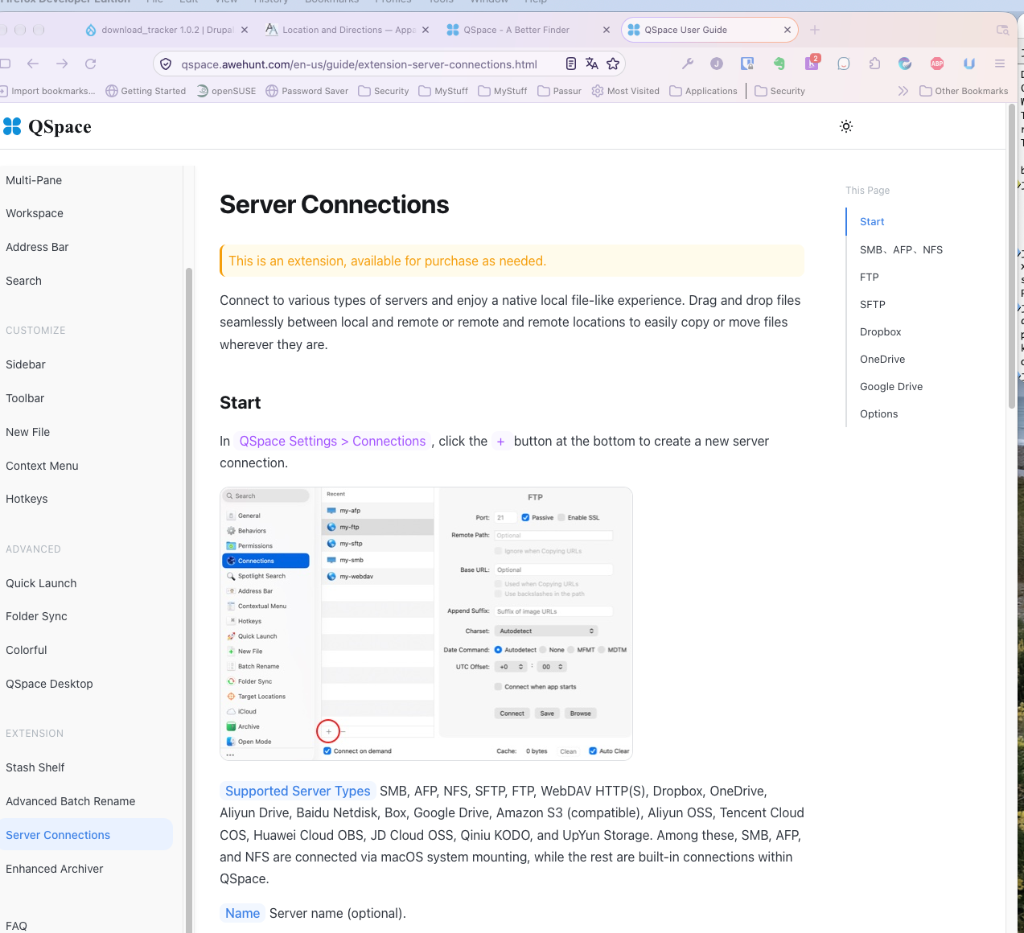
That is because you cannot buy QSpace extensions on the web. Everything happens inside the app:
- Open QSpace Pro and open Settings (
Cmd + ,). - Scroll to the very bottom of the left sidebar and click Extensions (or click Connections and click the
+button at the bottom, which will prompt you to unlock the extension). - Locate Server Connections and click Purchase (it is almost permanently on "Flash Sale" for $0.99, down from $9.99).
Once unlocked, go to QSpace Settings → Connections and click + to add your SFTP, FTP, WebDAV, SMB, or cloud servers. Make sure to fill in the optional Name field at the top so your server has a readable label in the sidebar and path bar. Because QSpace uses its own built-in asynchronous SFTP socket engine rather than macOS virtual mounts, heavy multi-gigabyte FLAC transfers stream smoothly in the background without choking the OS.
Step 2: Stop the Floating "Stash Shelf" from Hijacking Your Screen
By default, QSpace enables a feature called the Floating Stash Shelf—a tiny staging window that pops up outside the main QSpace window whenever you slightly wiggle or shake your mouse while dragging a file anywhere on macOS.

To stop it from popping up outside the QSpace window forever:
- Open QSpace Settings (
Cmd + ,) → Behaviors. - Next to Drag shake gesture, uncheck Show floating Stash Shelf so wiggling the cursor while dragging files never summons the floating window again.
- If a floating Stash Shelf window is already open on your screen, click its close button—or right-click the QSpace icon in your macOS Dock and uncheck Floating Stash Shelf.
- (Optional) If you also want to hide the normal in-app Stash Shelf docked at the top of the left sidebar inside the QSpace window, click the
•••icon at the bottom of the left sidebar (or right-click the sidebar) and uncheck Stash Shelf.
Step 3: Switch from Side-by-Side Panes to a Clean, ForkLift-Style Tabbed Layout
You do not have to live with three or four narrow panes crammed side-by-side. QSpace supports both Pane Tabs and Window Tabs, allowing you to keep your local Thunderbolt drives and remote SFTP servers organized in clean horizontal tabs across the top.
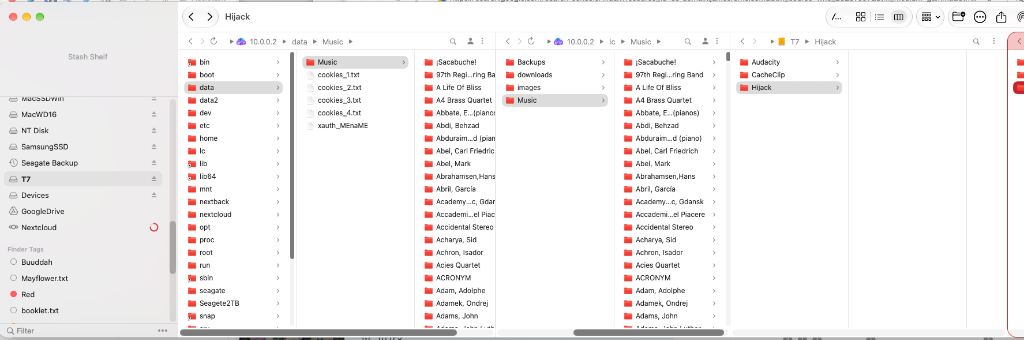
A. Set Up Tabs in Preferences (Cmd + ,)
- Go to Settings → General and set the default New Workspace Layout to the Single Pane icon (or a standard 2-pane split if you prefer dual-pane).
- Go to Settings → Behaviors → Windows & Workspaces (or search for
Tabin Settings):- Set Preferred tabs to In the window (for full-width tabs) or In the pane (for independent tab bars per pane).
- Set Open Workspace in to Tab.
B. Collapse Your Current Multi-Pane Window into Tabs
There is an easy UI trap in the QSpace toolbar: the button immediately to the right of the four view icons (Icon / List / Column / Gallery) looks like a layout button, but it is actually Group By (None, Kind, Date Modified, etc.).
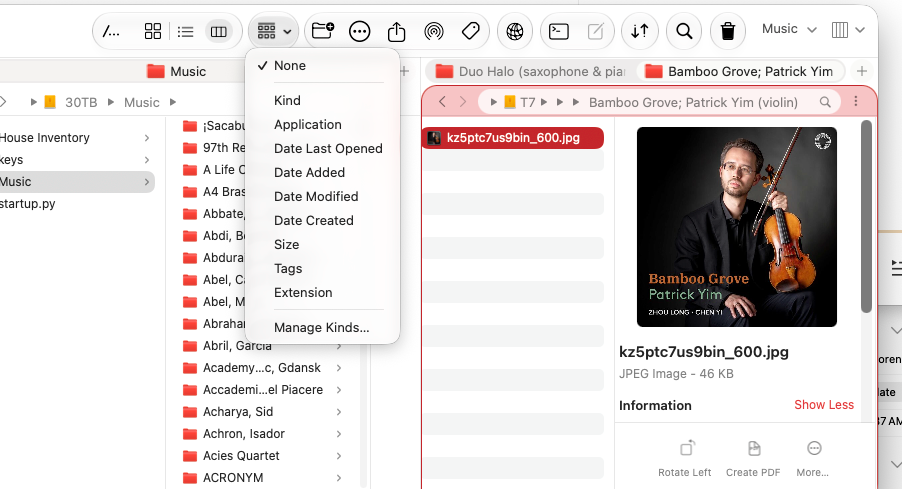
[|||] ∨) is at the far top-right corner, to the right of the "Music" workspace selector. Notice how folders can sit cleanly in tabs across the top with full artwork preview on the right.The actual Layout button is the very last icon at the far top-right corner of the toolbar, immediately to the right of your Workspace name (it looks like a box split into vertical bars: [|||] ∨):
- If you already have folders open in multiple side-by-side panes, drag the folder tabs from the right-hand panes directly into the left pane's tab bar so all your locations sit side-by-side as tabs.
- Click the
[|||] ∨Layout button at the far top-right of the toolbar (or go to Menu Bar → Window → Layout) and choose the first icon (Single Pane). - Use
Cmd + T(orCmd + Double-Clickon any folder) to open additional folders as tabs.
At this point, QSpace looks and feels remarkably like ForkLift—with native macOS Miller Columns (Cmd + 3) and an interactive right-hand preview pane for album art and audio metadata.
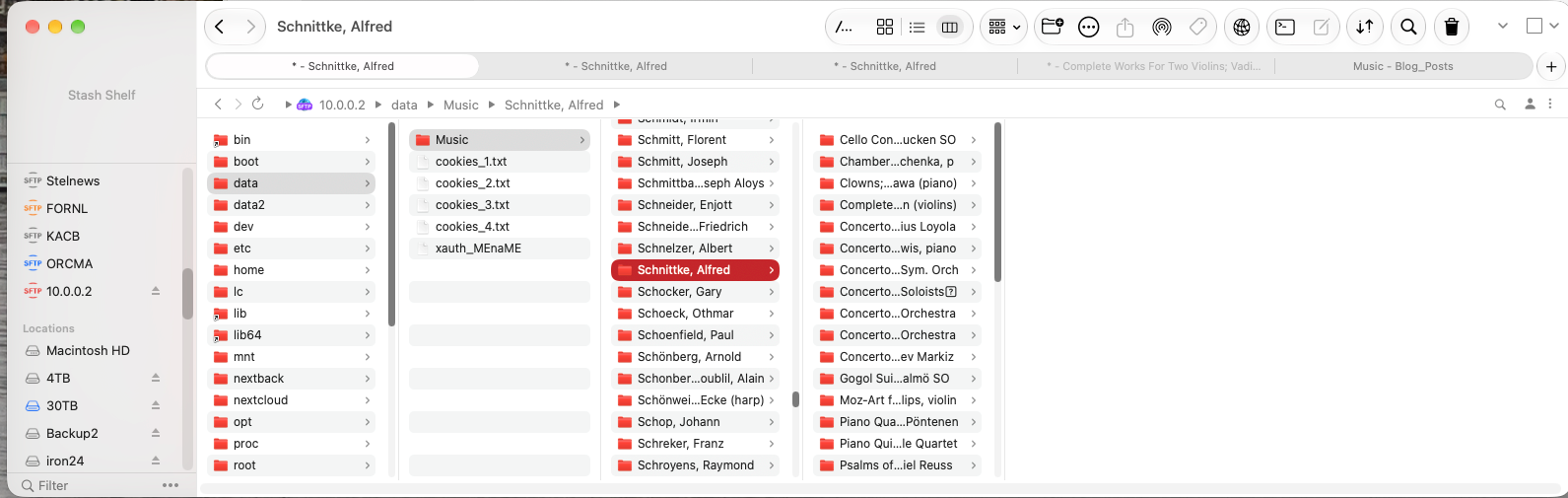
Step 4: Save Your Workspace, Lock Your Start Locations, and Back It Up!
In QSpace, a saved window layout—including all of its open tabs, panes, and view modes—is called a Workspace. If you manage a large media collection (such as a multi-drive Music workflow spanning remote Linux shares and local Thunderbolt arrays), you want QSpace to open that exact tab setup every time you launch the app.
- Save & Name the Workspace:
- Arrange your tabs the way you want them and press
Cmd + Sto save the workspace. - Click the Workspace dropdown near the top-right of the toolbar (just to the left of the
[|||] ∨Layout button) or pressOpt + Cmd + G. - Right-click the active workspace in the list, select Rename, and give it a name (e.g.,
Music).
- Arrange your tabs the way you want them and press
- Lock Each Tab's Starting Directory:
- By default, QSpace remembers whatever subfolder you happened to be browsing when you quit. If you want your
Musicworkspace to always open to the root of each music drive, right-click an empty spot inside each tab (or right-click the tab title itself) and choose Set as Start Location.
- By default, QSpace remembers whatever subfolder you happened to be browsing when you quit. If you want your
- Make It Your Startup Window—and Protect It from Accidental Deletion:
- Go to Settings (
Cmd + ,) → General and set Startup Window toMusic. - Right below that, under Workspace Save, change modified workspace handling from Auto Save to Ask.
- Crucial Warning: Never click Delete Workspace in the workspace menu thinking it merely removes the bookmark name! Deleting a workspace immediately closes the window and destroys your entire tab arrangement. (If that ever happens, check Menu Bar → Workspace → Reopen Last Closed Workspace or rebuild from Recent Locations in the sidebar.)
- Go to Settings (
- Export a One-Click Recovery Snapshot:
- Once your workspace, server connections, and tabs are dialed in, open QSpace Settings (
Cmd + ,), click the•••icon at the very bottom of the left sidebar, and click Backup Configuration. If you ever misclick a setting or move to a new Mac, Restore Configuration brings your entire setup back in seconds.
- Once your workspace, server connections, and tabs are dialed in, open QSpace Settings (
Add new comment